Skip to content

  • Home
  • About Us
  • Web Designing
  • Seo
  • Google Ads
  • Social Media
  • AI
  • Privacy Policy
  • Terms & Conditions
  • Contact Us
  • Toggle search form
Basic WordPress Settings You Must Configure After Installation

Basic WordPress Settings You Must Configure After Installation

Posted on April 3, 2025June 25, 2025 By hellosathesh@gmail.com No Comments on Basic WordPress Settings You Must Configure After Installation

When starting your WordPress website setup, installing a theme and uploading content isn’t enough. To ensure a fully functional, secure, and search engine-friendly website, you must configure some basic WordPress Settings right after installation. These essential adjustments improve your site’s SEO, enhance website security, and deliver a better user experience.

Whether you’re a beginner or an experienced developer, this step-by-step WordPress configuration guide will help you get the most out of your site from day one.

Table of Contents

Toggle
  • Why Configuring WordPress Settings is Crucial
  • 1. General Settings
  • 2. Reading Settings
  • 3. Permalink Settings
  • 4. Discussion Settings
  • 5. Media Settings
  • 6. Privacy & Security Settings
  • Final Thoughts

Why Configuring WordPress Settings is Crucial

Changing the default WordPress installation settings before launch boosts:

  • SEO performance for better Google rankings
  • Website security to prevent hacks and brute-force attacks
  • User experience through optimized permalinks and display settings
  • Website speed and performance with proper media and plugin settings

Must-Configure WordPress Settings After Installation

1. General Settings

Navigate to: WordPress Settings > General

Timezone, Date & Time Format: Set your local timezone to ensure accurate post scheduling and time display.

Site Title & Tagline: Choose an SEO-friendly title and tagline. Example: “TechBlog – Latest Tech News & Reviews.”

WordPress Address (URL) & Site Address (URL): Always use HTTPS for better security and SEO.

Admin Email: Enter a valid email for recovery and notification purposes.

2. Reading Settings

Navigate to: Settings > Reading

  • Homepage Display: Choose between a static page or your latest posts. For business sites, a static homepage is often better.
  • Search Engine Visibility: Uncheck “Discourage search engines from indexing this site” to allow your site to be indexed by Google.

3. Permalink Settings

Navigate to: Settings > Permalinks
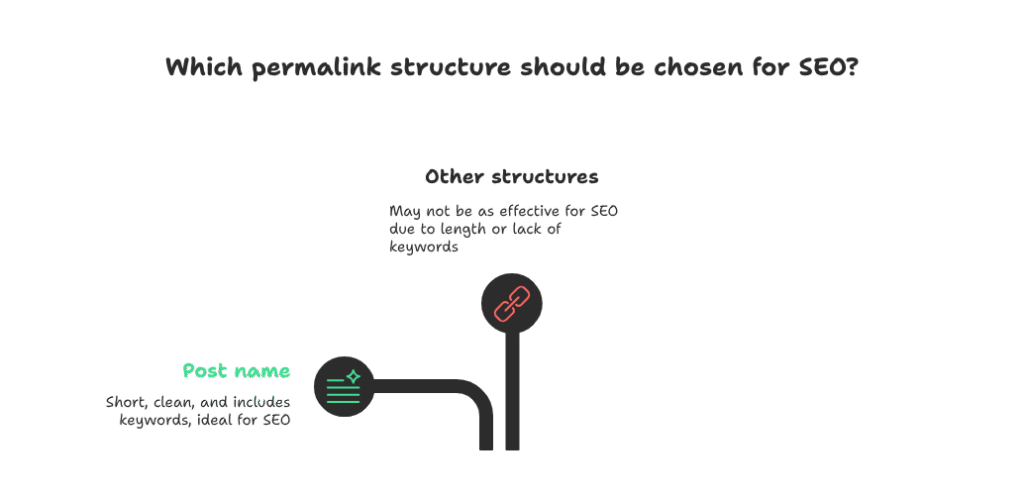
Permalink Settings

Choose the “Post name” structure (e.g., yourwebsite.com/sample-post). This format is short, clean, and includes keywords—ideal for SEO.

4. Discussion Settings

Navigate to: Settings > Discussion

  • Enable or disable comments on blog posts.
  • Install anti-spam plugins like Akismet or Antispam Bee to filter out spam.
  • Enable manual approval for better comment moderation.

5. Media Settings

Navigate to: Settings > Media

  • Adjust default image sizes to prevent oversized files.
  • Use image optimization plugins like Smush or ShortPixel to reduce load times without sacrificing quality.

6. Privacy & Security Settings

Navigate to: Settings > Privacy

  • Create a Privacy Policy page to comply with GDPR and other data protection laws.
  • Use security plugins like Wordfence or iThemes Security to safeguard your website from threats.

Final Thoughts

Don’t overlook these basic but essential WordPress Settings after installation. A properly configured WordPress site is not only more secure and faster but also ranks better on search engines.

By following these best practices, you’re setting the foundation for a professional, high-performing WordPress website.
Web Designing

Post navigation

Previous Post: Install Theme and Plugins: Boost Design & SEO
Next Post: What is Digital Marketing? A Beginner’s Guide for 2025

Related Posts

AI in Web Designing: Future of Creative Websites AI in Web Designing: Future of Creative Websites Web Designing
How to Install WordPress: The Complete Guide for New Website Owners How to Install WordPress: The Complete Guide for New Website Owners Web Designing
Check Website Accessibility: Manual Checks and Tools to Use in 2025 Check Website Accessibility: Manual Checks and Tools to Use in 2025 Web Designing
How to Install a Theme and Plugins for Better Design and Functionality Install Theme and Plugins: Boost Design & SEO Web Designing
How to Make an E-Commerce Website (No Coding Needed!) How to Make an E-Commerce Website (No Coding Needed!) in 2025 Web Designing
Elementor page builder What is Elementor & How Does It Work? Web Designing

Leave a Reply Cancel reply

Your email address will not be published. Required fields are marked *

quick links

  • Home
  • About Us
  • Web Designing
  • Seo
  • Google Ads
  • Social Media
  • AI
  • Privacy Policy
  • Terms & Conditions
  • Contact Us

Recent Posts

  • Social Media Marketing Strategy for 2026: The Complete Growth Guide
  • On-Page SEO Checklist for 2026: The Complete Guide to Higher Rankings
  • Latest UI/UX Design Trends to Boost Conversions in 2026
  • Google Ads Landing Page Optimization Tips for 2026: Turn Clicks into Conversions
  • Small Business Web Design Tips to Increase Conversions

Recent Comments

No comments to show.

Archives

  • March 2026
  • February 2026
  • January 2026
  • December 2025
  • November 2025
  • October 2025
  • September 2025
  • August 2025
  • July 2025
  • June 2025
  • May 2025
  • April 2025

Categories

  • AI
  • Google Ads
  • Seo
  • Social Media
  • Uncategorized
  • Web Designing
Untitled_design__3_-removebg-preview

“Explore how SocialAdLeads leverages data-driven targeting and optimized ad funnels to deliver better lead generation results across Facebook, Instagram, and more.”


Useful Links

Menu
  • Home
  • About Us
  • Web Designing
  • Seo
  • Google Ads
  • Social Media
  • AI
  • Privacy Policy
  • Terms & Conditions
  • Contact Us

Subscribe Now

Don’t miss our future updates! Get Subscribed Today!

©2025. socialadleads. All Rights Reserved.