Skip to content

  • Home
  • About Us
  • Web Designing
  • Seo
  • Google Ads
  • Social Media
  • AI
  • Privacy Policy
  • Terms & Conditions
  • Contact Us
  • Toggle search form
Basic WordPress Settings You Must Configure After Installation

Basic WordPress Settings You Must Configure After Installation

Posted on April 3, 2025June 25, 2025 By hellosathesh@gmail.com No Comments on Basic WordPress Settings You Must Configure After Installation

When starting your WordPress website setup, installing a theme and uploading content isn’t enough. To ensure a fully functional, secure, and search engine-friendly website, you must configure some basic WordPress Settings right after installation. These essential adjustments improve your site’s SEO, enhance website security, and deliver a better user experience.

Whether you’re a beginner or an experienced developer, this step-by-step WordPress configuration guide will help you get the most out of your site from day one.

Table of Contents

Toggle
  • Why Configuring WordPress Settings is Crucial
  • 1. General Settings
  • 2. Reading Settings
  • 3. Permalink Settings
  • 4. Discussion Settings
  • 5. Media Settings
  • 6. Privacy & Security Settings
  • Final Thoughts

Why Configuring WordPress Settings is Crucial

Changing the default WordPress installation settings before launch boosts:

  • SEO performance for better Google rankings
  • Website security to prevent hacks and brute-force attacks
  • User experience through optimized permalinks and display settings
  • Website speed and performance with proper media and plugin settings

Must-Configure WordPress Settings After Installation

1. General Settings

Navigate to: WordPress Settings > General

Timezone, Date & Time Format: Set your local timezone to ensure accurate post scheduling and time display.

Site Title & Tagline: Choose an SEO-friendly title and tagline. Example: “TechBlog – Latest Tech News & Reviews.”

WordPress Address (URL) & Site Address (URL): Always use HTTPS for better security and SEO.

Admin Email: Enter a valid email for recovery and notification purposes.

2. Reading Settings

Navigate to: Settings > Reading

  • Homepage Display: Choose between a static page or your latest posts. For business sites, a static homepage is often better.
  • Search Engine Visibility: Uncheck “Discourage search engines from indexing this site” to allow your site to be indexed by Google.

3. Permalink Settings

Navigate to: Settings > Permalinks
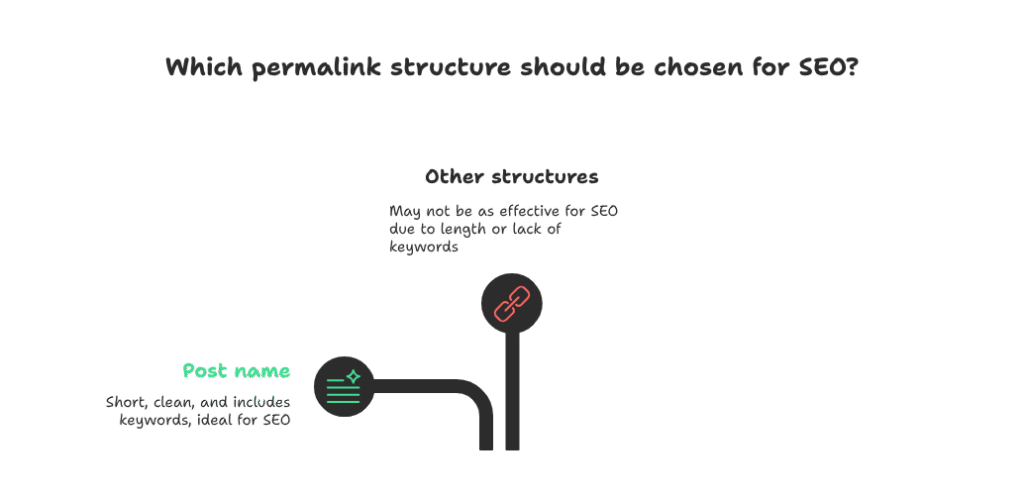
Permalink Settings

Choose the “Post name” structure (e.g., yourwebsite.com/sample-post). This format is short, clean, and includes keywords—ideal for SEO.

4. Discussion Settings

Navigate to: Settings > Discussion

  • Enable or disable comments on blog posts.
  • Install anti-spam plugins like Akismet or Antispam Bee to filter out spam.
  • Enable manual approval for better comment moderation.

5. Media Settings

Navigate to: Settings > Media

  • Adjust default image sizes to prevent oversized files.
  • Use image optimization plugins like Smush or ShortPixel to reduce load times without sacrificing quality.

6. Privacy & Security Settings

Navigate to: Settings > Privacy

  • Create a Privacy Policy page to comply with GDPR and other data protection laws.
  • Use security plugins like Wordfence or iThemes Security to safeguard your website from threats.

Final Thoughts

Don’t overlook these basic but essential WordPress Settings after installation. A properly configured WordPress site is not only more secure and faster but also ranks better on search engines.

By following these best practices, you’re setting the foundation for a professional, high-performing WordPress website.
Web Designing

Post navigation

Previous Post: Install Theme and Plugins: Boost Design & SEO
Next Post: What is Digital Marketing? A Beginner’s Guide for 2025

Related Posts

Elementor page builder What is Elementor & How Does It Work? Web Designing
How to Install a Theme and Plugins for Better Design and Functionality Install Theme and Plugins: Boost Design & SEO Web Designing
How to Install WordPress: The Complete Guide for New Website Owners How to Install WordPress: The Complete Guide for New Website Owners Web Designing
How to Create Custom Header and Footer with Elementor How to Create a Custom Header and Footer with Elementor in 2025 Web Designing
How to Boost Your Brand with Creative Web Design Ideas How to Boost Your Brand with Creative Web Design Ideas Web Designing
AI in Web Designing: Future of Creative Websites AI in Web Designing: Future of Creative Websites Web Designing

Leave a Reply Cancel reply

Your email address will not be published. Required fields are marked *

quick links

  • Home
  • About Us
  • Web Designing
  • Seo
  • Google Ads
  • Social Media
  • AI
  • Privacy Policy
  • Terms & Conditions
  • Contact Us

Recent Posts

  • Artificial Intelligence in 2026: The Complete Guide for Businesses
  • Social Media Marketing Strategy for 2026: The Complete Growth Guide
  • On-Page SEO Checklist for 2026: The Complete Guide to Higher Rankings
  • Latest UI/UX Design Trends to Boost Conversions in 2026
  • Google Ads Landing Page Optimization Tips for 2026: Turn Clicks into Conversions

Recent Comments

No comments to show.

Archives

  • April 2026
  • March 2026
  • February 2026
  • January 2026
  • December 2025
  • November 2025
  • October 2025
  • September 2025
  • August 2025
  • July 2025
  • June 2025
  • May 2025
  • April 2025

Categories

  • AI
  • Google Ads
  • Seo
  • Social Media
  • Uncategorized
  • Web Designing
Untitled_design__3_-removebg-preview

“Explore how SocialAdLeads leverages data-driven targeting and optimized ad funnels to deliver better lead generation results across Facebook, Instagram, and more.”


Useful Links

Menu
  • Home
  • About Us
  • Web Designing
  • Seo
  • Google Ads
  • Social Media
  • AI
  • Privacy Policy
  • Terms & Conditions
  • Contact Us

Subscribe Now

Don’t miss our future updates! Get Subscribed Today!

©2025. socialadleads. All Rights Reserved.